In-Person Payments, Finally in One Place: Timelish Expands Financial Tools for Service Businesses
Timeli.sh Team|June 16, 2026|5 min read|No comments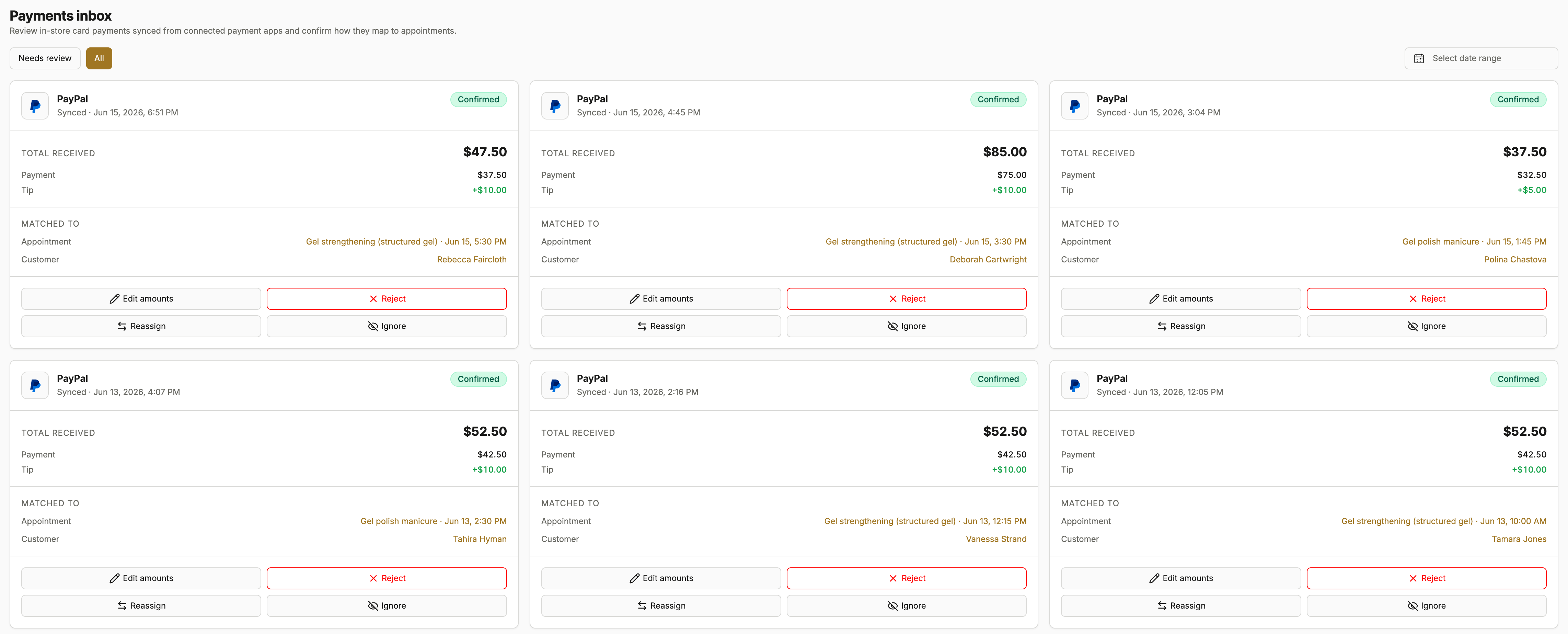
If you run a salon, spa, barbershop, or any appointment-based business, you already know the feeling. A client pays at the front desk with your card reader. Later that day, you check your booking software and the payment is not there. You are left guessing which appointment it belonged to, or copying numbers between apps at the end of a long week.
Online deposits through your booking page were only half the picture. The rest of your revenue often lives in Square, Stripe, or PayPal at the counter. Until now, those worlds did not always meet in one clear view.
Today we are announcing a set of updates that bring your in-person card payments from PayPal, Square, and Stripe closer to your appointment calendar, give you a clearer picture of your business finances, and make it easier to share records with your bookkeeper or accountant.
In-Person Payments From PayPal, Square, and Stripe Now Flow Into Timelish
When a client pays at the counter, that payment should not disappear into your card reader app while your booking calendar stays in the dark.
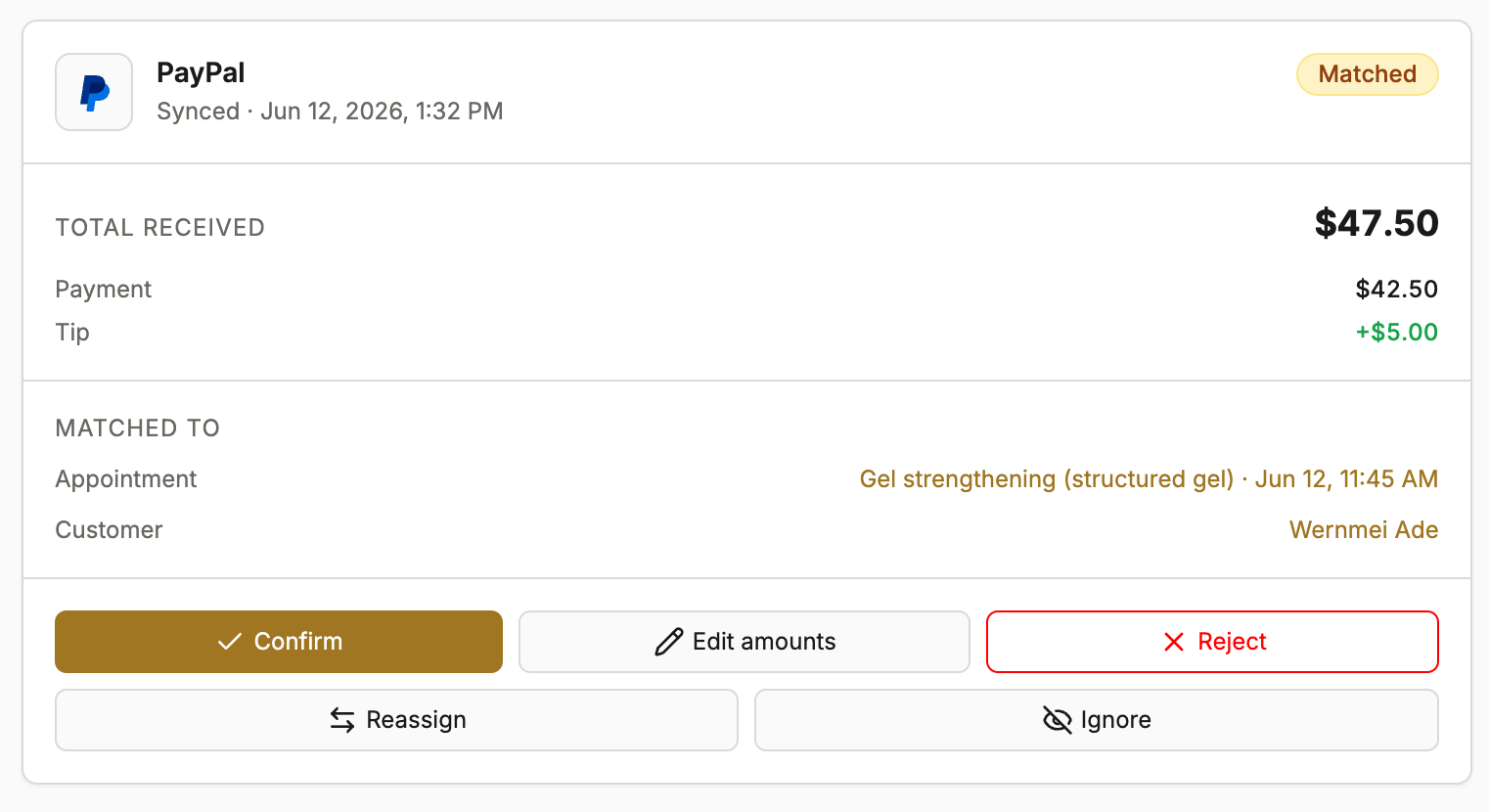
Timelish now catches in-person card payments from the processors most service businesses already use and lines them up with appointments on your calendar. Whether your client taps a card on a PayPal reader, swipes through Square at the front desk, or pays on Stripe hardware, those transactions can land in your Payments Inbox for review.
From the inbox, you can see suggested matches to appointments, confirm the right one, or assign a payment yourself if needed. You do not need to export spreadsheets from your processor and cross-reference them with your schedule. You do not need to remember which tap on the reader belonged to which client. Timelish does the heavy lifting so you can stay focused on the service in front of you.
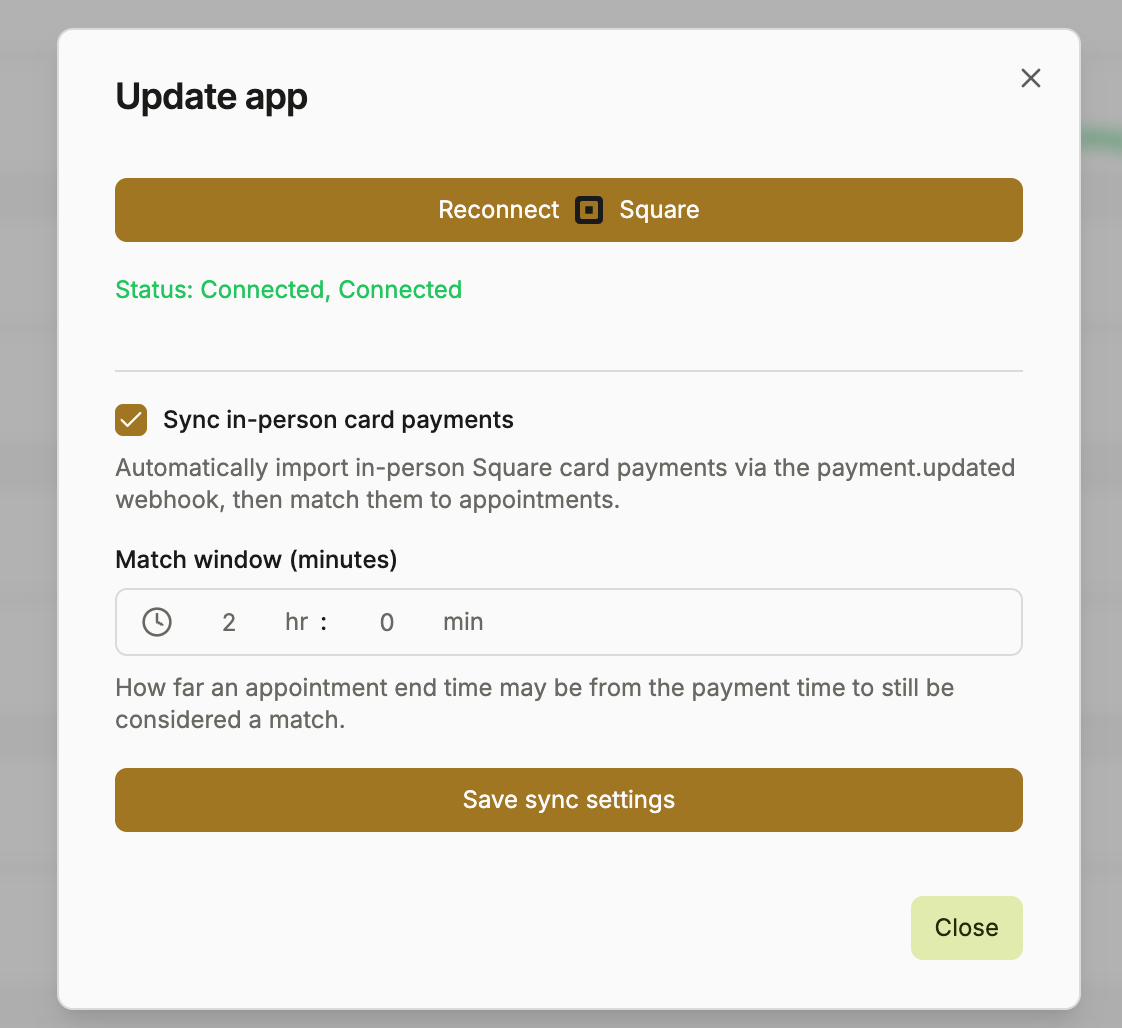
In-store sync is turned on by default when you connect Square or Stripe. PayPal users can enable it in their app settings. For any processor, you can adjust how closely a payment time should match an appointment, or switch sync off if you prefer to handle things manually.
A Clearer Financial Hub in Your Dashboard
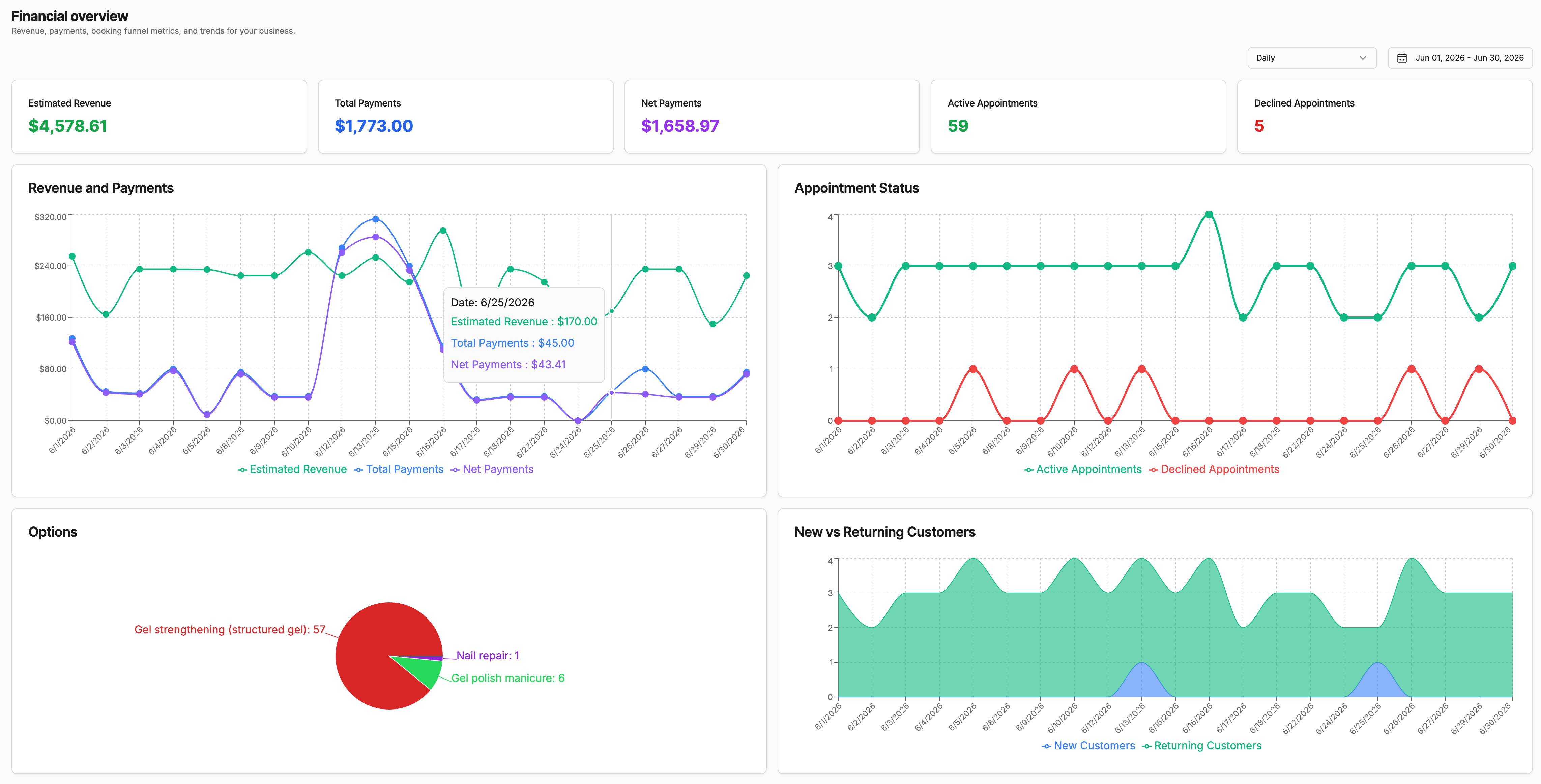
Financial reporting is no longer tucked inside a separate app. It lives where it belongs: under Financials in your Timelish admin.
Overview gives you a snapshot of how your business is performing. It is the first place we recommend checking when you want a quick read on revenue and activity without digging through individual transactions.
This change is about simplicity. The tools you rely on for money should not feel like an add-on. They should feel like part of the product you already use every day.
Export Your Payment History in One Click
Tax season, monthly reviews, and conversations with your accountant all have one thing in common: someone eventually asks for a spreadsheet.
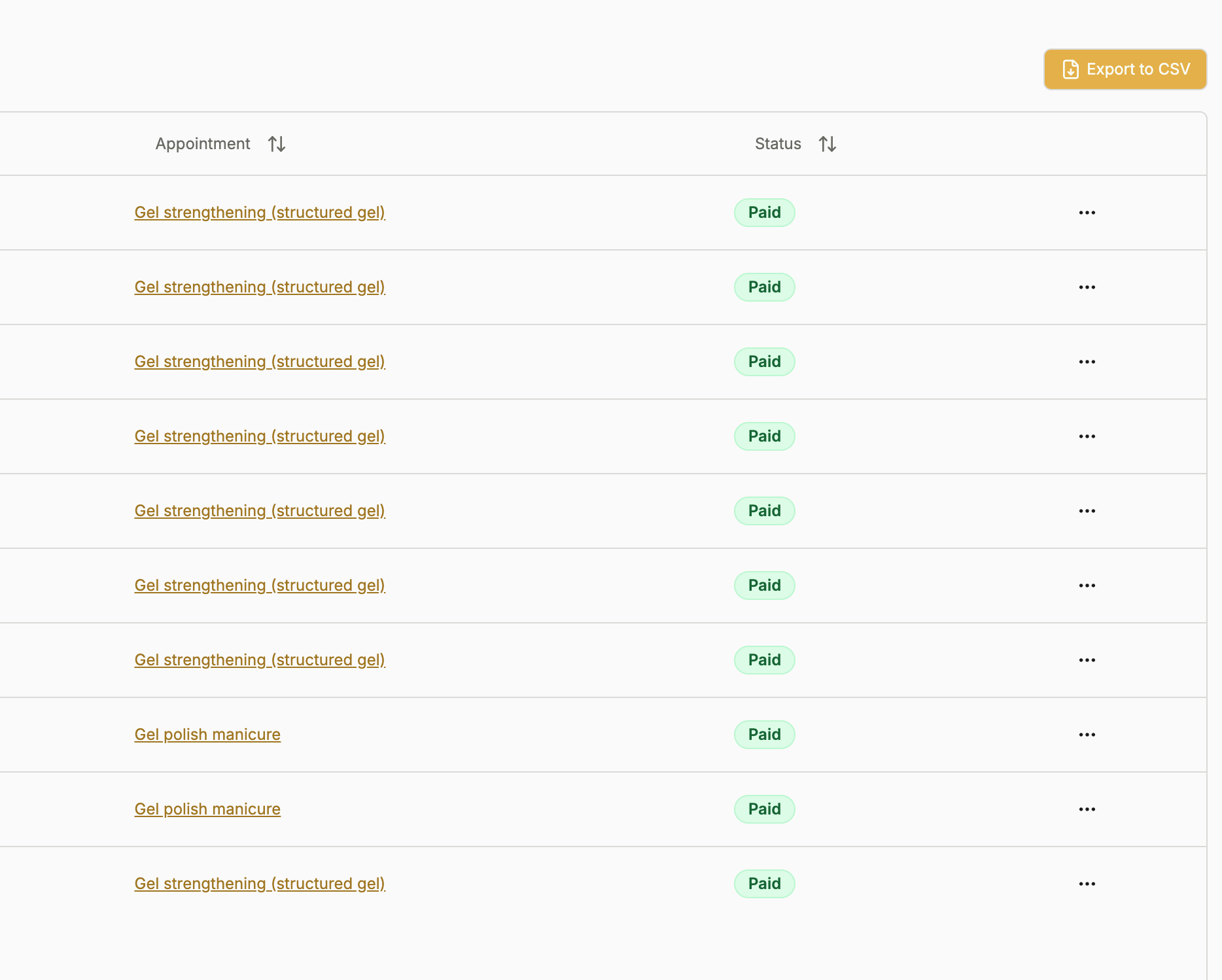
You can now export your payment history to CSV (Excel) directly from the payments table in Timelish. Filter the list the way you already do, click export, and download a file you can open in Excel, Google Sheets, or hand off to your bookkeeper.
No more copying rows by hand. No more logging into three different systems to build one report.
Faster Access to Payment Details
Small time savings add up across a busy week.
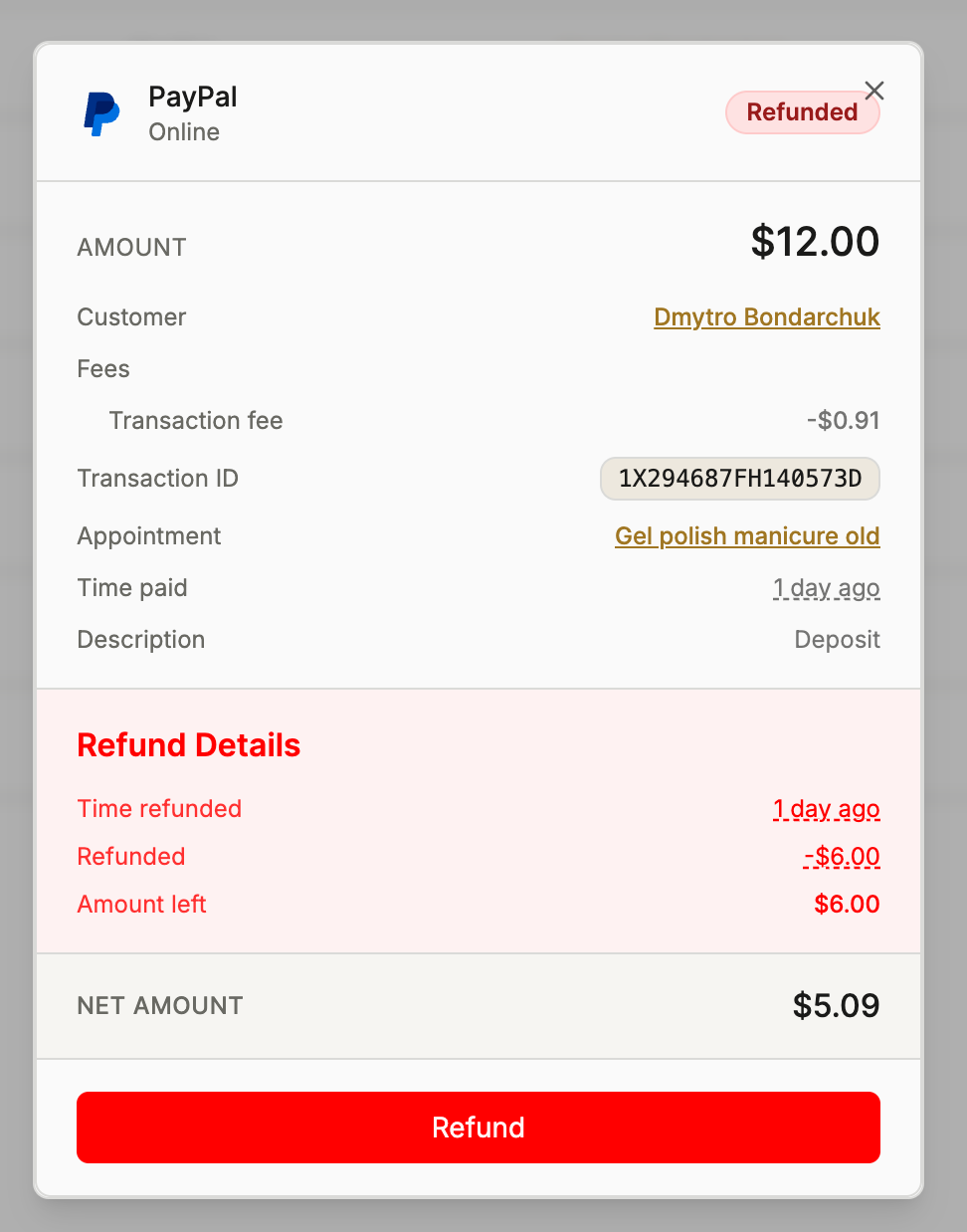
In your payments list, you can now open full payment details. Tap the date on any row and see the information you need in one place, including fees and related context, without hunting through menus.
Who This Is For
These updates are built for owners and managers who:
Take deposits online but collect the balance in person at the appointment
Use PayPal, Square, or Stripe hardware at the front desk or on a mobile reader
Want one place to review money, match payments to bookings, and export records
If you only take payments online through Timelish and never use a physical card reader, your day-to-day workflow stays the same. These improvements are especially helpful when your team swipes, taps, or inserts cards at checkout.
What You Need to Do
If you already use PayPal, Square, or Stripe with Timelish:
Open Apps in your admin and confirm your payment processor is connected.
Visit Financials and open the Payments Inbox to see in-person payments waiting for review.
Check in-store sync settings in your PayPal, Square, or Stripe app setup. Square and Stripe enable sync by default on connect; PayPal users can turn it on from their app settings.
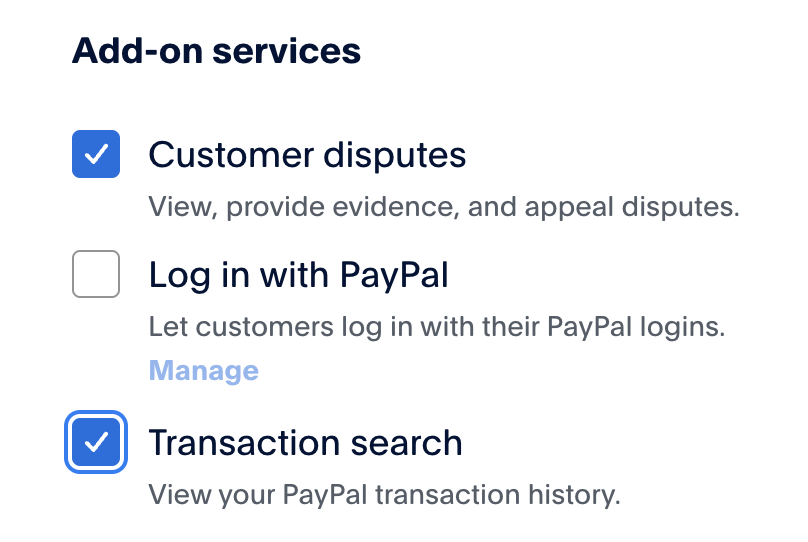
For PayPal, users need to enable Transaction Search add-on service in their PayPal Developer app
If you are not connected yet, linking your processor takes a few minutes from your payment settings, the same as before
Looking Ahead
We started Timelish because booking and getting paid should not feel like two different jobs. Every release moves us closer to that goal: less admin, fewer loose ends, and more confidence that what happened at the front desk is reflected in your calendar and your books.
Questions about these updates or which payment processor fits your business? Our support team is here to help.
Start your free trial at Timelish
Timelish is the all-in-one appointment scheduling platform for modern service businesses. Connect your booking page, calendar, payments, and client communication in one place.
No comments yet. Be the first to comment.
Add comment
 timeli.shThe all-in-one appointment scheduling platform for modern businesses.